Monday, July 1, 2024

Create new command with Autolisp


 Create Your Own CAD Commands with AutoLISP in PTCAD

One of the most powerful features of professional CAD platforms is the ability to automate repetitive tasks. If you’ve ever used AutoLISP in AutoCAD, you’ll be happy to know that PTCAD fully supports AutoLISP programming — allowing you to take full control of your workflow.

✅ What is AutoLISP?

AutoLISP is a programming language built specifically for CAD automation. With it, users can:

  • Create custom commands

  • Automate drawing routines

  • Modify geometry with a few lines of code

  • Speed up repetitive tasks

AutoLISP has long been a favorite tool among advanced CAD users — and now, it’s fully supported in PTCAD.


💡 Why Use AutoLISP in PTCAD?

PTCAD is not just a DWG-compatible CAD solution. It’s built for power users too. Here’s what makes it great for scripting:

🧠 1. Full Compatibility

PTCAD supports standard AutoLISP syntax, so you can copy existing .lsp files directly from your AutoCAD environment and run them in PTCAD — no modification required in most cases.

🛠 2. Custom Command Creation

Want to create your own command like DOORMARK, STEELBAR, or MYOFFSET? Just write a few lines of LISP code and load it into PTCAD. Your custom tool will be ready instantly.

Example:

lisp
(defun c:hello () (alert "Hello from PTCAD!") )

Type HELLO in the command line, and watch it work.

🚀 3. Boost Productivity

Automate everything from layer setup to dimensioning. If you do the same thing over and over in drawings — you can script it.


🔧 How to Use AutoLISP in PTCAD

  1. Open PTCAD

  2. Go to ToolsLoad Application

  3. Select your .lsp file

  4. Type your custom command in the command line

  5. Done!


🧑‍💻 Who is it for?

  • Engineers who want to speed up detailing

  • Drafters with repetitive design patterns

  • CAD managers building internal toolkits

  • Power users switching from AutoCAD


🌟 Real-World Use Cases

  • Batch rename layers

  • Auto-insert title blocks with project info

  • Draw custom rebar layouts or beams

  • Setup standard dimensions in one click


✅ Why PTCAD?

PTCAD is a modern CAD software designed with compatibility and efficiency in mind — and at a fraction of the cost of legacy solutions. With AutoLISP support, you don’t lose the flexibility you’ve built up over years — you enhance it.


              

Thursday, June 13, 2024

How to use lisp in PTCAD

          How to use lisp in PTCAD


LISP or Autolisp language program is great for automating tasks in PTCAD. 

        User can think  how to reduce time of repeat action in drafting process ?

       How to automate routine commands ?

    In PTCAD , user can load LISP program to run as this steps


How to Use LISP in PTCAD

  1. Open PTCAD

  2. Go to Tools → Load Application

  3. Select your .lsp file

  4. Type your custom command in the command line

  5. Done!


STEPS in details

1. open NOTEPAD  then put this code and save as  hello.lsp

This sample use Hello PTCAD prgram


(defun c:HPT  () ; command name to run program

    (princ "Hello, PTCAD\n") 

    (princ "Hello, PTCAD\n") 

    (princ "Hello, PTCAD\n") 


2.Start PTCAD and use command to load application

type command : appload 

then click add file   then choosing wanted file


select file      hello.lsp


3. run command , type HPT   press enter

Then get result


Wednesday, May 22, 2024

Custom Short Commands for Speed

 Custom Short Commands for Speed


PTCAD supports the creation of custom short commands using 1 or 2 characters, allowing users to quickly access commands without having to type the full command name. For example, L stands for Line, and C stands for Circle.

To create your own shortcut commands, users can go to the shortcut command settings by

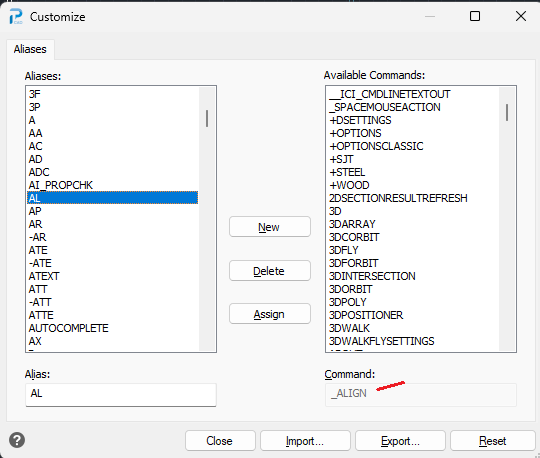
typing the command ALIASEDIT and pressing Enter. This will open a dialog box as shown below.


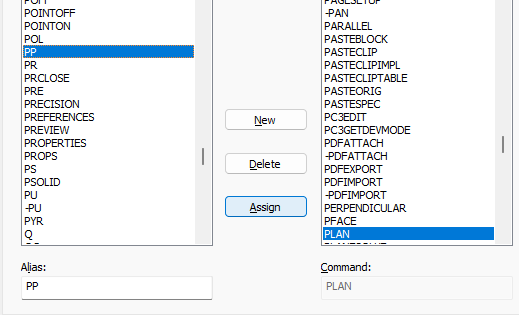
On the left side, you will see the existing aliases (shortcuts), and on the right side, you will see the full command names. For example, clicking on AL reveals that it is the alias for the ALIGN command.

In this example, we’ll create two custom shortcuts for users who frequently work in 3D and often need to switch views between the Top View and the Isometric View.


  1. We will assign the alias PP to the PLAN command.

1.1 Click the New button, then type PP into the Alias field in the lower-left corner.

1.2 On the right-hand side, search for the PLAN command, click it so it turns blue, then click the Assign button as shown below.


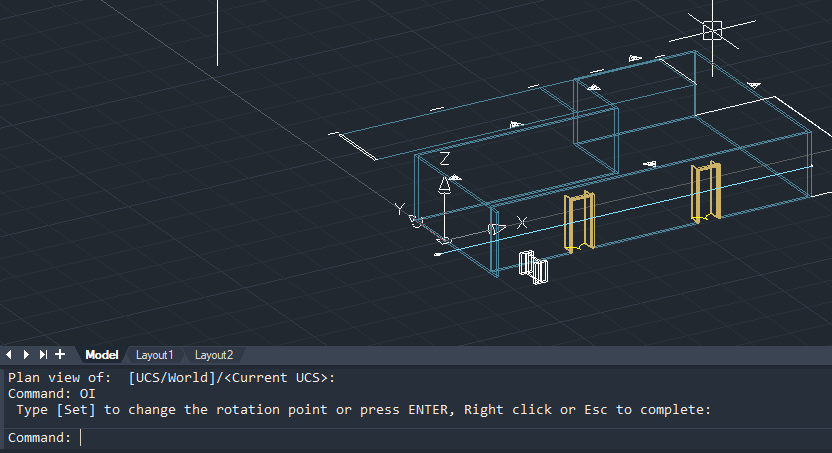
  1. Next, we’ll assign the alias Oi to the 3DORBIT command by repeating the same steps as in item 1.

The 3DORBIT command allows you to switch to a 3D view.


Try using the Oi command, then click and hold the left mouse button to change the view in real-time.


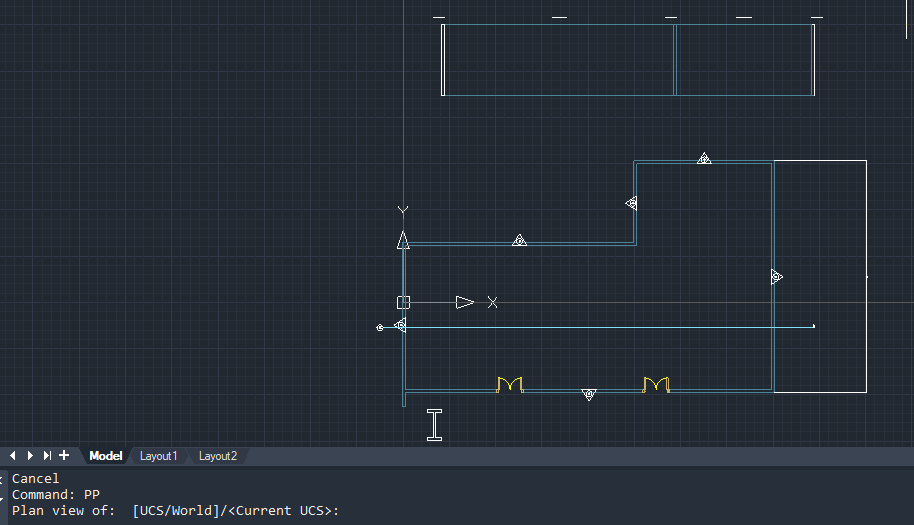
Now try using the PP command and press Enter twice — the view will instantly switch back to Top View.


For users who prefer typing commands in the command line, shortcut aliases can greatly help save time and improve workflow efficiency.

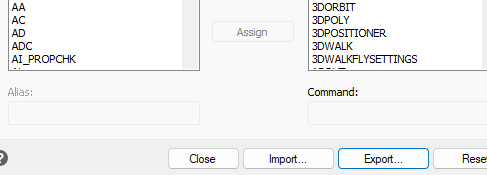
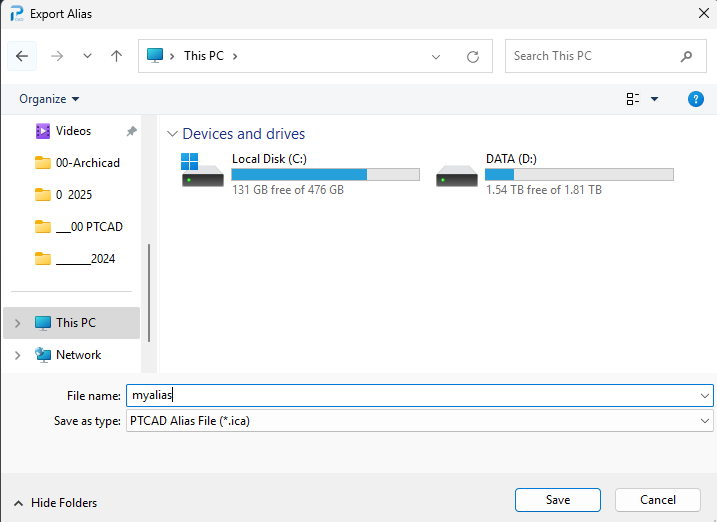
Additionally, once you’ve set up a number of aliases, you can export your shortcut set into a file with the .ica extension for backup or transfer.


Tuesday, April 2, 2024

20 Keyboard Commands Available in PTCAD

 20 Keyboard Commands Available in PTCAD

In PTCAD, users can execute commands using keyboard shortcuts as follows:

  • F1 – Opens the Help window

  • F2 – Opens the Command Prompt window to view command history

  • F3 – Toggles Entity Snap on/off (e.g., snap to endpoint, midpoint, center, etc.)

  • F5 – Switches Isometric drawing planes

  • F7 – Toggles Grid Display on/off

  • F8 – Toggles Ortho Mode on/off (locks movement along X or Y axis)

  • F9 – Toggles Snap Mode on/off

  • Ctrl + A – Selects all objects in the drawing

  • Ctrl + C – Copies selected objects

  • Ctrl + X – Cuts selected objects for pasting elsewhere

  • Ctrl + V – Pastes copied/cut objects and lets you specify an insertion point

  • Ctrl + Z – Undoes the last command

  • Ctrl + Y – Redoes the last undone command

  • Ctrl + S – Saves the current drawing

  • Ctrl + 1 – Opens/closes the Properties Palette

  • Ctrl + 2 – Opens/closes the PTCAD Explorer Palette

  • Ctrl + 3 – Opens/closes the Tool Palette

  • Ctrl + 4 – Opens/closes the Sheet Set Manager

  • Ctrl + 5 – Opens/closes the Selection Filter Palette

  • Ctrl + Shift – Activates the 3DORBIT mode

    • With Left Mouse Button – Zoom in/out

    • With Middle Mouse Button – Rotate the 3D view


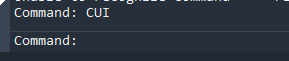
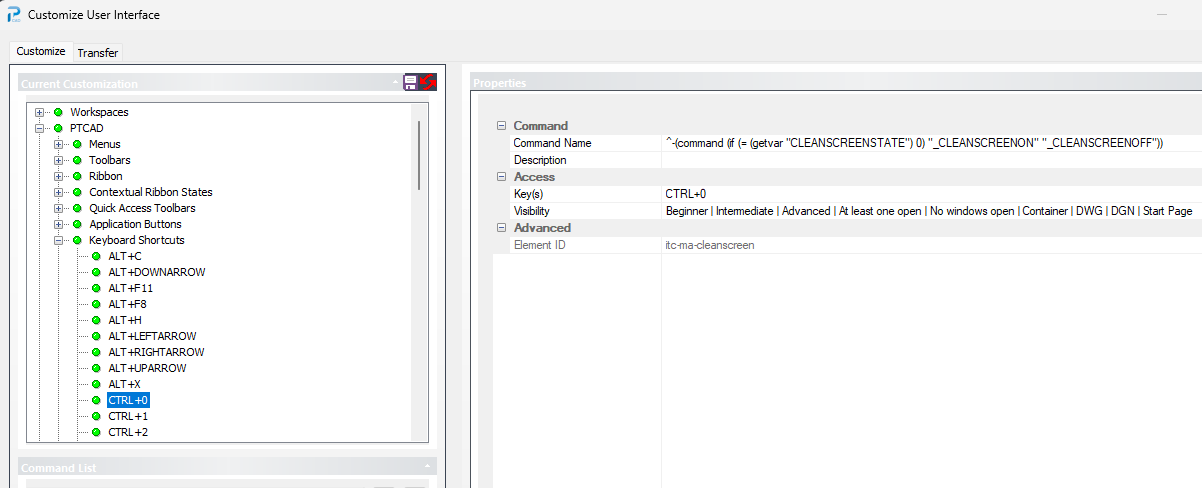
These shortcut commands can be customized or reassigned by users through the CUI command, which opens the Customize User Interface window.
To modify or create new commands, further learning on command scripting may be required


FREE LISP : Improving Drawing Quality by using Ortho-Check LISP

  Improving Drawing Quality with an Ortho-Check LISP Tool In many CAD workflows, especially in architectural, engineering, and construction...