Thursday, June 13, 2024

How to use lisp in PTCAD

          How to use lisp in PTCAD


LISP or Autolisp language program is great for automating tasks in PTCAD. 

        User can think  how to reduce time of repeat action in drafting process ?

       How to automate routine commands ?

    In PTCAD , user can load LISP program to run as this steps


How to Use LISP in PTCAD

  1. Open PTCAD

  2. Go to Tools → Load Application

  3. Select your .lsp file

  4. Type your custom command in the command line

  5. Done!


STEPS in details

1. open NOTEPAD  then put this code and save as  hello.lsp

This sample use Hello PTCAD prgram


(defun c:HPT  () ; command name to run program

    (princ "Hello, PTCAD\n") 

    (princ "Hello, PTCAD\n") 

    (princ "Hello, PTCAD\n") 


2.Start PTCAD and use command to load application

type command : appload 

then click add file   then choosing wanted file


select file      hello.lsp


3. run command , type HPT   press enter

Then get result


Wednesday, May 22, 2024

Custom Short Commands for Speed

 Custom Short Commands for Speed


PTCAD supports the creation of custom short commands using 1 or 2 characters, allowing users to quickly access commands without having to type the full command name. For example, L stands for Line, and C stands for Circle.

To create your own shortcut commands, users can go to the shortcut command settings by

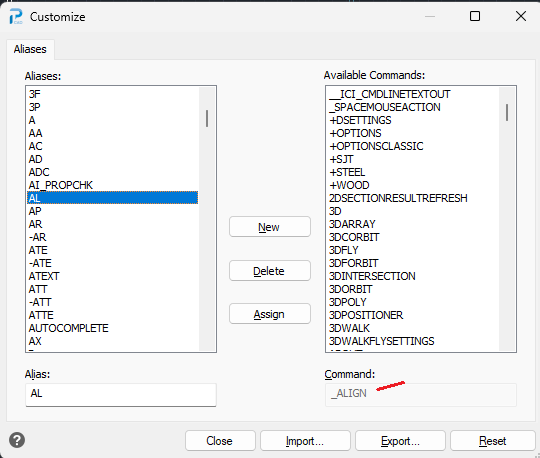
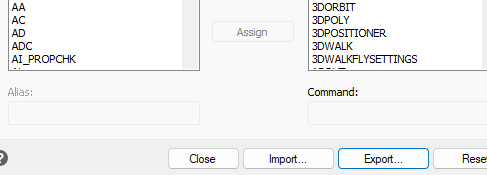
typing the command ALIASEDIT and pressing Enter. This will open a dialog box as shown below.


On the left side, you will see the existing aliases (shortcuts), and on the right side, you will see the full command names. For example, clicking on AL reveals that it is the alias for the ALIGN command.

In this example, we’ll create two custom shortcuts for users who frequently work in 3D and often need to switch views between the Top View and the Isometric View.


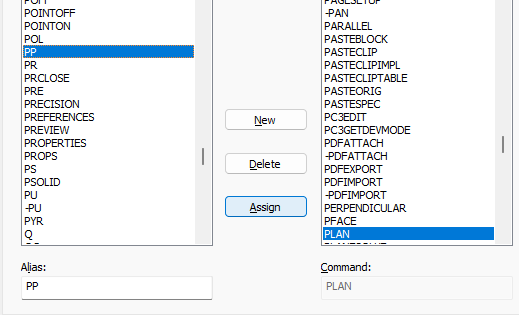
  1. We will assign the alias PP to the PLAN command.

1.1 Click the New button, then type PP into the Alias field in the lower-left corner.

1.2 On the right-hand side, search for the PLAN command, click it so it turns blue, then click the Assign button as shown below.


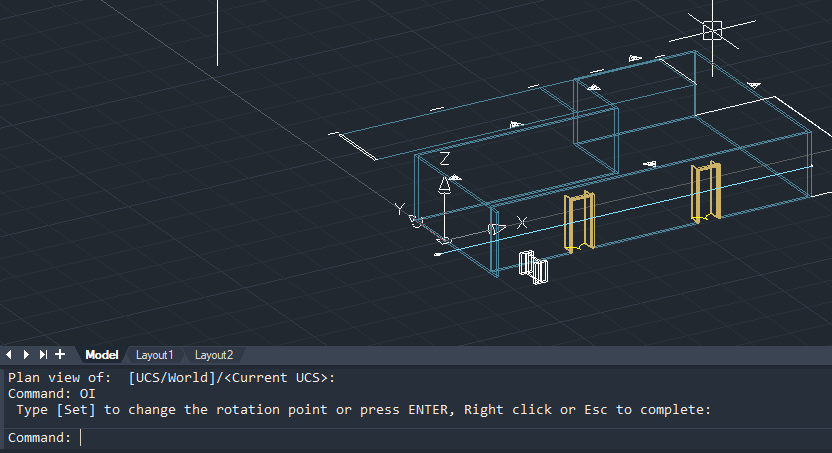
  1. Next, we’ll assign the alias Oi to the 3DORBIT command by repeating the same steps as in item 1.

The 3DORBIT command allows you to switch to a 3D view.


Try using the Oi command, then click and hold the left mouse button to change the view in real-time.


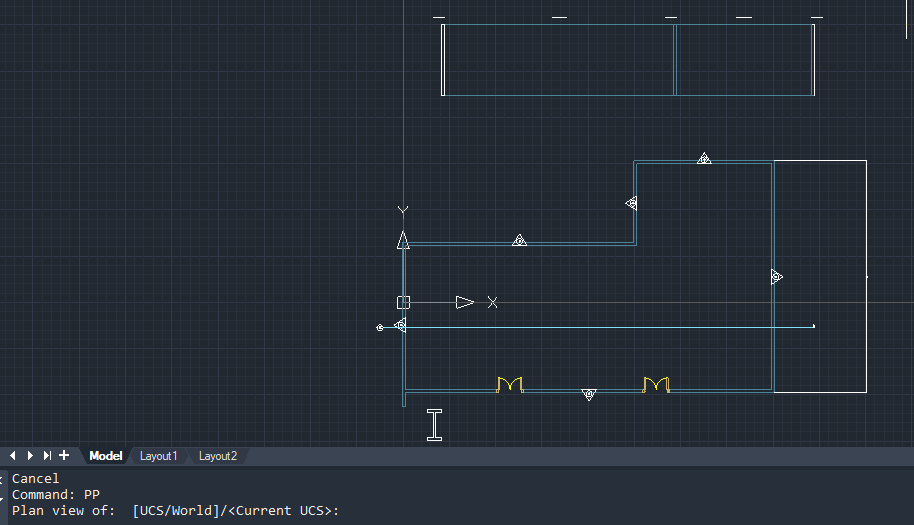
Now try using the PP command and press Enter twice — the view will instantly switch back to Top View.


For users who prefer typing commands in the command line, shortcut aliases can greatly help save time and improve workflow efficiency.

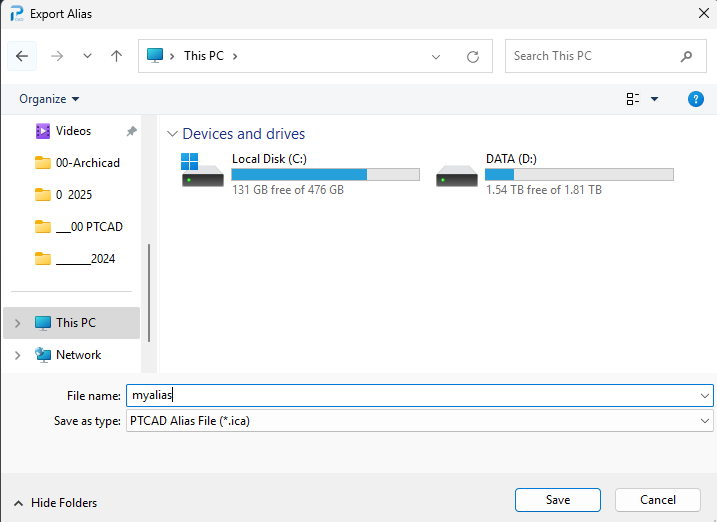
Additionally, once you’ve set up a number of aliases, you can export your shortcut set into a file with the .ica extension for backup or transfer.


Tuesday, April 2, 2024

20 Keyboard Commands Available in PTCAD

 20 Keyboard Commands Available in PTCAD

In PTCAD, users can execute commands using keyboard shortcuts as follows:

  • F1 – Opens the Help window

  • F2 – Opens the Command Prompt window to view command history

  • F3 – Toggles Entity Snap on/off (e.g., snap to endpoint, midpoint, center, etc.)

  • F5 – Switches Isometric drawing planes

  • F7 – Toggles Grid Display on/off

  • F8 – Toggles Ortho Mode on/off (locks movement along X or Y axis)

  • F9 – Toggles Snap Mode on/off

  • Ctrl + A – Selects all objects in the drawing

  • Ctrl + C – Copies selected objects

  • Ctrl + X – Cuts selected objects for pasting elsewhere

  • Ctrl + V – Pastes copied/cut objects and lets you specify an insertion point

  • Ctrl + Z – Undoes the last command

  • Ctrl + Y – Redoes the last undone command

  • Ctrl + S – Saves the current drawing

  • Ctrl + 1 – Opens/closes the Properties Palette

  • Ctrl + 2 – Opens/closes the PTCAD Explorer Palette

  • Ctrl + 3 – Opens/closes the Tool Palette

  • Ctrl + 4 – Opens/closes the Sheet Set Manager

  • Ctrl + 5 – Opens/closes the Selection Filter Palette

  • Ctrl + Shift – Activates the 3DORBIT mode

    • With Left Mouse Button – Zoom in/out

    • With Middle Mouse Button – Rotate the 3D view


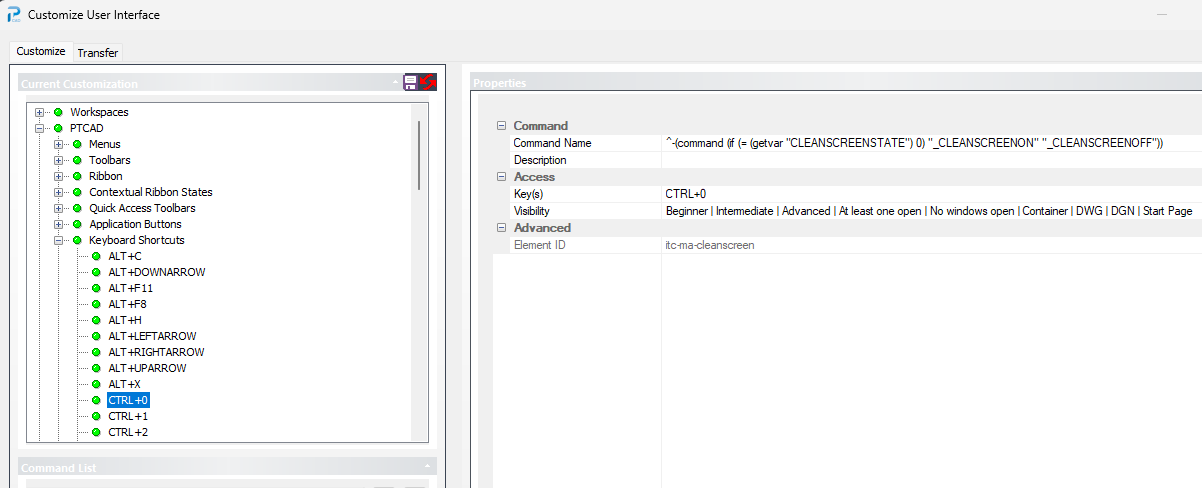
These shortcut commands can be customized or reassigned by users through the CUI command, which opens the Customize User Interface window.
To modify or create new commands, further learning on command scripting may be required


Tuesday, March 5, 2024


PTCAD: The Smart Choice for Affordable, Compatible CAD Solutions

In today's fast-paced design and engineering environments, businesses and individuals need a reliable CAD platform that balances functionality, compatibility, and cost-efficiency. PTCAD emerges as the perfect solution, offering powerful features and unmatched value for professionals.


1. Full Compatibility with AutoCAD

PTCAD is designed with seamless compatibility in mind. It supports the same commands, functions, and file formats as AutoCAD, ensuring a smooth transition for users accustomed to industry standards. You can open, edit, and save DWG files natively, maintaining data integrity and collaboration efficiency with clients and partners who use AutoCAD.


2. Affordable Pricing – Over 50% Savings

One of the standout advantages of PTCAD is its affordable pricing. Users can enjoy premium 2D CAD features at a cost more than 50% lower than traditional CAD software solutions. This makes PTCAD ideal for freelancers, small businesses, startups, and educational institutions looking to optimize their budgets without compromising performance.


3. Flexible Licensing Options

PTCAD understands that different users have different needs. That’s why it offers flexible licensing models:

  • Annual Subscription: Perfect for users who prefer low upfront costs and always want access to the latest updates.

  • Perpetual License: Ideal for those who prefer a one-time payment and lifetime access without ongoing fees.

This choice allows users to manage their software investment in the way that best suits their business or project requirements.


4. Easy and Flexible Network Licensing

For organizations with multiple users, PTCAD supports network licensing. This feature enables easy sharing of licenses across a network, providing flexible access and efficient management of software seats. Whether in an office, a school, or a hybrid work environment, network licensing ensures that the right team members can use PTCAD when needed without the complexity of managing individual licenses.


5. Support for LISP Programming

PTCAD goes a step further by supporting LISP programming language, allowing users to create custom commands, automated workflows, and productivity shortcuts. By developing custom LISP routines, users can greatly improve drafting efficiency and save valuable time in the design process. Whether it’s automating repetitive tasks or introducing custom functions, LISP scripting gives users the power to tailor PTCAD to their specific project needs.

Download trial at  http://www.pt-cad.com

Blog URL is https://ptcaduser.blogspot.com/ 


FREE LISP : Improving Drawing Quality by using Ortho-Check LISP

  Improving Drawing Quality with an Ortho-Check LISP Tool In many CAD workflows, especially in architectural, engineering, and construction...